QUICK INFO
| Difficulty | Beginner |
| Time Required | 10-15 minutes to install and run first task |
| Prerequisites | Active paid Claude subscription (Pro, Max, Team, or Enterprise) |
| Tools Needed | Google Chrome browser (desktop only, not mobile) |
What You'll Learn:
- Install and configure the Claude Chrome extension
- Delegate browser tasks using the sidebar panel
- Record custom workflows that Claude can repeat
- Schedule recurring browser automation
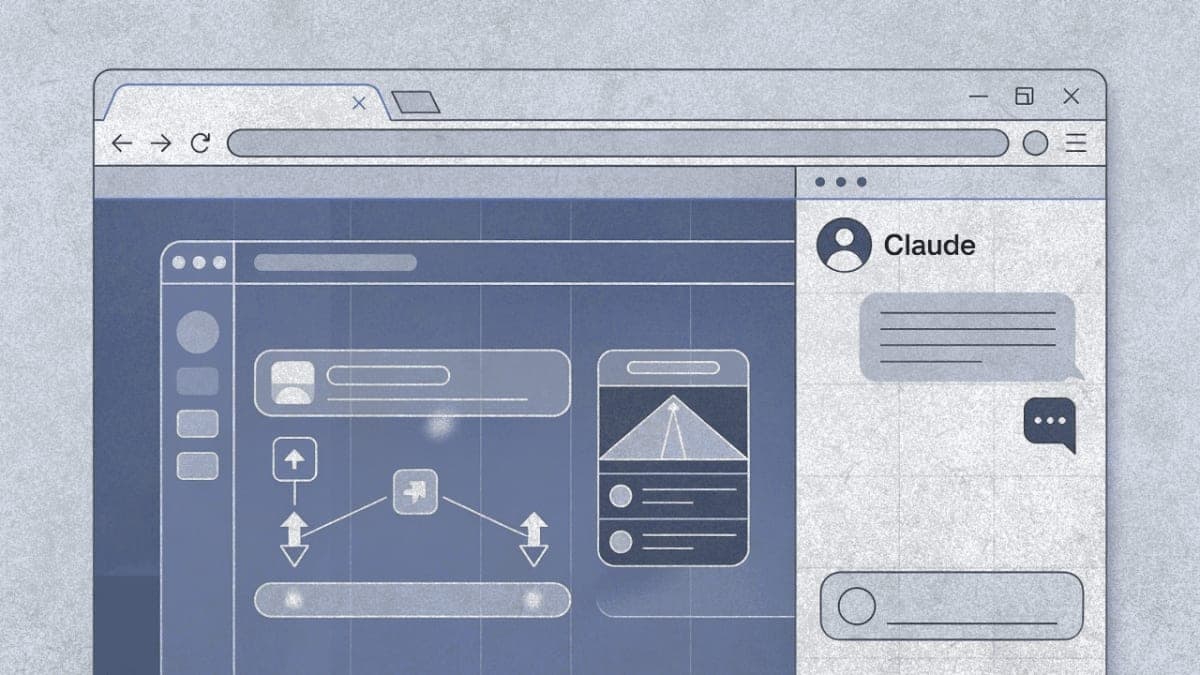
This guide covers installing Claude for Chrome and running your first automated browser task. You need a paid Claude subscription. The extension works in the Chrome browser's side panel while you browse, seeing what you see and clicking when you ask.
Getting Started
Open Google Chrome on your desktop. The extension doesn't work on mobile or other Chromium-based browsers like Brave or Opera, despite them using the same engine. Go to the Chrome Web Store and search for "Claude" or navigate directly to the extension page published by Anthropic. Click "Add to Chrome" and confirm the installation.
After installing, click the puzzle piece icon in your Chrome toolbar and pin Claude by clicking the thumbtack next to it. The Claude icon now appears in your toolbar. Click it to open the side panel.
Sign in with your Claude account credentials. You'll need to grant permissions for the extension to interact with web pages. The permission prompt asks for access to read and change data on sites you visit, which is how Claude sees page content and performs actions.
How the Side Panel Works
The extension opens as a persistent sidebar on the right side of your browser. Unlike a regular Claude chat window, this version watches your current tab and can take actions on it. Type a request in natural language and Claude reads the page, clicks buttons, fills forms, or navigates links.
Claude operates within a "tab group" system. Drag tabs into Claude's designated tab group and it can see and work across all grouped tabs simultaneously. This matters when you need to gather information from multiple sources before taking an action, like checking your calendar before scheduling in another app.
The extension defaults to Haiku 4.5 for speed. You can switch to Sonnet 4.5 for complex tasks or Opus 4.5 for maximum reasoning power using the model selector in the panel. I've found Haiku handles most straightforward tasks fine, but multi-step workflows benefit from Sonnet.
Running Your First Task
Start with something low-stakes. Here are tasks Claude handles well out of the box:
Email and calendar management. Claude has built-in understanding of Gmail and Google Calendar. A request like "check my calendar for next week and list any days without meetings" works without detailed instructions. For Gmail: "archive all newsletters from the last week" or "star any emails mentioning deadlines."
Form filling. Give Claude a document or describe the information, then ask it to fill out a web form. I've used this for repetitive vendor applications and expense reports. The extension handles most standard form fields.
Web research and extraction. Ask Claude to visit a competitor's site and summarize their pricing page, or pull specific data points from a page into a structured format.
Testing web features. Developers use this with Claude Code: build something in the terminal, then have the Chrome extension verify it works correctly. Claude can read console errors and DOM state directly.
Grant site permissions as you go. The extension asks before accessing new domains. Start with sites you trust and expand from there.
Step 1: Open a Site and Describe the Task
Navigate to the website where you want Claude to act. Open the Claude side panel if it's not already open. Type your request in conversational language. Don't over-specify unless the task is unusual. "Archive all emails from marketing[at]company.com from the last month" is enough for Gmail.
Expected result: Claude responds with a brief plan or starts acting immediately, depending on your permission settings.
Step 2: Watch Claude Work
Claude performs actions in your active tab. You'll see the cursor move, forms fill, and buttons click. For multi-step tasks, Claude continues working even if you switch tabs (as long as Chrome stays open). Enable notifications to get alerts when Claude needs permission or finishes a task.
Step 3: Handle Permission Prompts
Claude asks for confirmation before high-risk actions like purchasing, publishing, or sharing personal data. You'll see a prompt in the side panel. Review what Claude wants to do and approve or modify the request.
The "Ask before acting" permission mode has Claude create a plan for your approval first. Once you approve the plan, Claude executes the entire workflow without asking again unless something unexpected comes up. This is useful for longer workflows where constant prompting would slow things down.
Recording Custom Workflows
This is the feature the user's post mentioned. You can teach Claude your own processes by recording them.
Click the cursor icon in the menu bar or type "/" in the chat and select "Record workflow." Perform the task yourself while Claude watches your screen and listens to your voice. Click, type, and narrate what you're doing. When you finish, Claude generates a shortcut: a name, a prompt describing what you did, and the starting URL.
The narration part matters. Claude needs to understand the intent behind your clicks, not just replicate the exact button sequence. Explain what you're looking for, why you're making certain choices. "I'm archiving these because they're older than 30 days" gives Claude context to handle variations.
From then on, type "/" to access your saved shortcuts. Select one and Claude repeats the workflow. You can also save well-crafted prompts directly as shortcuts without recording: hover over a message you've sent and click the save icon.
Limitations I've noticed: Claude sometimes stops mid-task on very long lists. Adding verification to your request helps: "process all 47 emails" or "after every 20 items, confirm before continuing." Variable results happen when instructions are ambiguous. Be specific about criteria.
Scheduling Recurring Tasks
Once a workflow runs reliably, you can schedule it to run automatically. When creating or editing a shortcut, toggle on "Schedule" at the bottom. Choose daily, weekly, monthly, or annual frequency, set the date and time, and select which model to use. Claude runs the workflow at the specified time and notifies you when done or when it needs input.
Some practical scheduled tasks:
- Weekly calendar planning that flags which meetings need prep
- Daily competitor website checks for pricing or blog updates
- Monthly cleanup of old emails or files
Chrome needs to be open for scheduled tasks to run. If you close the browser, the task waits until you open it again.
Troubleshooting
Claude can't see the page or takes no action. Check that you've granted the extension permission for the current domain. Look for the permission prompt in the side panel or click the extension icon and check site access settings.
Claude performs the wrong action or clicks the wrong element. Complex or non-standard page layouts confuse the visual recognition. Try being more specific about what element to interact with ("the blue Submit button in the lower right" rather than "submit"). Take a screenshot and highlight the specific element using the screenshot feature.
Scheduled task didn't run. Chrome must be open. The task queues if the browser was closed and attempts to run when you reopen.
Claude stops mid-workflow. For long tasks, add checkpoints to your instructions. "After each section, pause and confirm you should continue" prevents the agent from timing out or losing context.
Prompt injection concerns. Anthropic blocks access to financial services, adult content, and pirated content sites by default. Hidden malicious instructions on web pages can theoretically hijack agent actions. Stick to trusted sites, especially for sensitive tasks. Report unexpected behavior through the feedback option.
What's Next
The Claude Code integration is worth exploring if you're a developer. Build in the terminal, then test in the browser with Claude reading console errors and verifying against design mocks. The official help center at support.claude.com has detailed guides for specific use cases.
PRO TIPS
Use the "/" shortcut menu frequently. It shows your saved workflows plus contextual suggestions based on the current site. Claude surfaces relevant prompts for platforms it understands well like Slack, GitHub, and Google Workspace.
For repetitive form-filling across many entries, give Claude a spreadsheet or document with the data first, then point it at the form. Faster than entering each field manually in your instructions.
The "Convert to task" button appears after multi-turn conversations. If you've walked Claude through something complex across several messages, click it to save the whole sequence as a reusable shortcut.
Screenshots and highlights work better than lengthy text descriptions for visual layouts. Click the screenshot icon, drag to select a region, and annotate if needed.
FAQ
Q: Does Claude for Chrome work on other Chromium browsers like Brave or Edge? A: The extension is officially only supported on Google Chrome desktop. Users have reported mixed results on other Chromium browsers.
Q: Can Claude access sites that require login? A: Yes, Claude works within your active browser session. If you're logged into Gmail, Claude can interact with your Gmail. It uses your existing session cookies.
Q: Is there a limit to how many tasks I can run? A: Usage counts against your subscription's overall Claude limits. Heavy browser automation uses more capacity than regular chat.
Q: What happens to my data? A: Claude processes pages you explicitly grant access to. Anthropic's privacy policy applies. The extension can't access tabs outside Claude's tab group without permission.
Q: Can I use this without a paid subscription? A: No. The extension requires Pro, Max, Team, or Enterprise plans.
RESOURCES
- Getting Started with Claude in Chrome: Official setup and usage documentation
- Claude in Chrome Release Notes: Feature updates and changelog
- Using Claude in Chrome Safely: Safety best practices and risk considerations
- Chrome Web Store: Claude: Direct installation link