QUICK INFO
| Difficulty | Beginner |
| Time Required | 15-20 minutes |
| Prerequisites | Admin/sudo access on your machine |
| Tools Needed | Terminal or Command Prompt, text editor |
What You'll Learn:
- Install Python correctly on Windows, macOS, or Linux
- Create isolated virtual environments for projects
- Install and manage packages without conflicts
- Fix the most common environment problems
Many of our AI tutorials require a working Python environment before you can do anything else. Installing LangChain, running local models, using the OpenAI SDK, fine-tuning with Hugging Face: they all assume you have Python configured correctly with isolated environments. Rather than repeat the same setup steps in every guide, this is the reference.
This guide covers installing Python and configuring virtual environments so your projects stay isolated from each other. It's for people starting fresh or fixing a broken setup. We're using the built-in venv module because it ships with Python and handles 90% of use cases.
Getting Started
You need admin access on your machine and a terminal. On Windows that's Command Prompt or PowerShell (run as Administrator for the installation step). On macOS and Linux, the default terminal works.
Check if Python is already installed by opening a terminal and typing:
python --version
Or on some systems:
python3 --version
If you see Python 3.10 or higher, skip to the virtual environment section. If you get an error or see Python 2.x, continue with installation.
Installing Python
I'm covering the straightforward installation path for each OS. There are other methods (pyenv, Homebrew, system package managers) that offer more control over version management, but they add complexity you probably don't need yet.
Windows
Download the installer from python.org/downloads. As of late 2025, Python 3.13 or 3.14 will be offered as the current stable version. Python 3.12 is also a solid choice if you want something with a longer track record of library compatibility.
Run the installer. On the first screen, check "Add python.exe to PATH" at the bottom. This is the single most common mistake people make, and it causes endless problems later. Then click "Install Now."
Expected result: Open a new Command Prompt window (existing windows won't have the updated PATH) and run python --version. You should see the version you installed.
macOS
macOS includes a system Python, but it's often outdated and you shouldn't modify it. Install a separate Python.
Download the macOS installer from python.org/downloads. Run the .pkg file and follow the prompts. The installer handles PATH configuration automatically.
Expected result: Open Terminal and run python3 --version. Note that on macOS, the command is typically python3, not python.
Linux
Most distributions include Python 3, but it might be an older version. On Ubuntu/Debian:
sudo apt update
sudo apt install python3 python3-venv python3-pip
The python3-venv package is sometimes missing from minimal installations, which causes confusing errors later when you try to create virtual environments.
Expected result: Run python3 --version and confirm you have 3.10 or higher.
Creating a Virtual Environment
Virtual environments isolate project dependencies. Without them, installing a package for one project can break another project that needs a different version of the same package. This happens constantly once you have more than two or three projects.
Navigate to your project folder (or create one):
mkdir my_project
cd my_project
Create the virtual environment:
python -m venv venv
On systems where Python 3 is python3:
python3 -m venv venv
The second venv is the folder name. You can call it .venv or env or whatever you want. I use venv because it's obvious and I don't have to remember what I called it.
This creates a venv folder containing a copy of the Python interpreter and a place to install packages. The folder is about 20-30 MB.
Activating the Environment
This is the step people forget constantly. Every time you open a new terminal to work on your project, you need to activate the environment.
Windows (Command Prompt):
venv\Scripts\activate
Windows (PowerShell):
venv\Scripts\Activate.ps1
macOS/Linux:
source venv/bin/activate
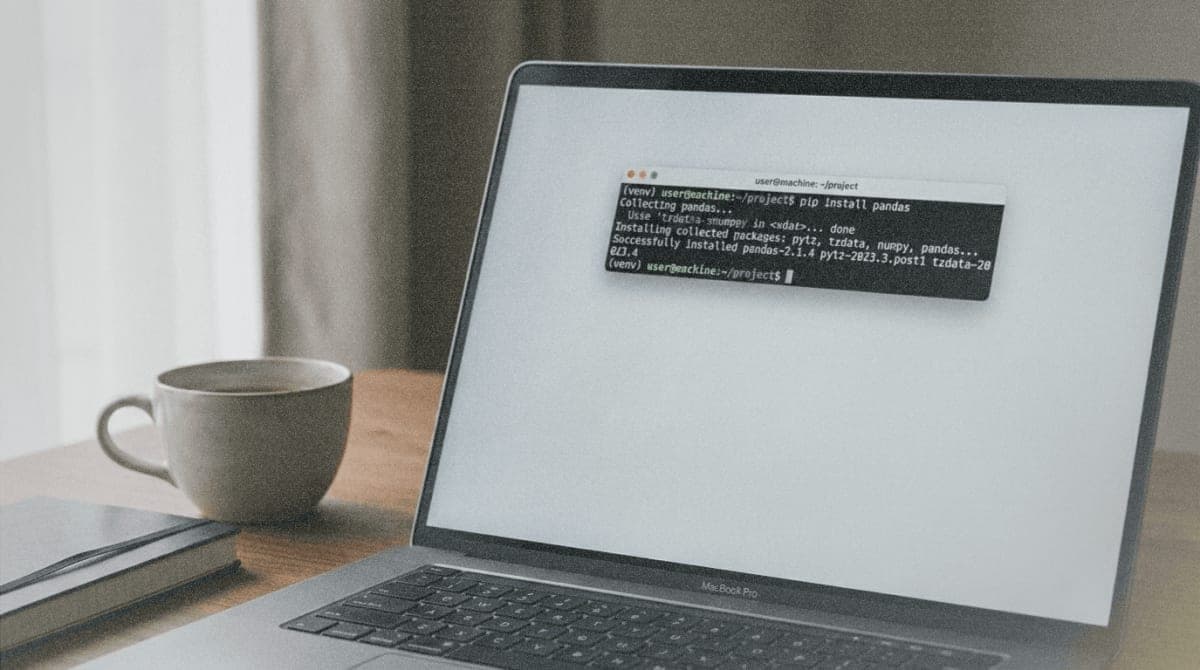
Expected result: Your terminal prompt changes to show (venv) at the beginning. This indicates the environment is active.
When the environment is active, python and pip commands use the isolated versions, not the system-wide ones. To deactivate later, just type deactivate.
PowerShell Execution Policy
Actually, I should mention this earlier since it trips up a lot of Windows users. PowerShell might refuse to run the activation script with an error about execution policies. If that happens, run this once:
Set-ExecutionPolicy -ExecutionPolicy RemoteSigned -Scope CurrentUser
Then try activating again.
Installing Packages
With your environment activated, install packages using pip:
pip install requests
Packages go into the venv folder, not your system Python. You can verify this:
pip show requests
The Location field should point to somewhere inside your venv folder.
Requirements Files
For reproducible setups, save your dependencies to a file:
pip freeze > requirements.txt
On another machine (or after deleting and recreating the environment), install everything at once:
pip install -r requirements.txt
The pip freeze output includes exact version numbers, which matters for reproducibility but can cause problems if you share the file across different operating systems. Packages with compiled components (like numpy) sometimes have OS-specific versions. I've seen requirements files generated on macOS fail on Linux because of this.
If you're sharing code publicly, consider maintaining a requirements.txt with looser version constraints (like requests>=2.28.0 instead of requests==2.31.0) and a separate requirements-lock.txt with exact versions for your own deployments.
Project Structure
A minimal project looks like this:
my_project/
├── venv/
├── src/
│   └── main.py
├── requirements.txt
└── README.md
Add venv/ to your .gitignore file. You don't commit the virtual environment folder to version control. Anyone cloning your project creates their own environment and runs pip install -r requirements.txt.
Troubleshooting
Symptom: python: command not found or 'python' is not recognized
Fix: Python isn't in your PATH. On Windows, reinstall and check "Add to PATH." On macOS/Linux, try python3 instead of python.
Symptom: No module named venv
Fix: On Linux, install the venv package separately: sudo apt install python3-venv
Symptom: Packages installed but import still fails
Fix: You probably installed packages with the system pip, not the virtual environment pip. Check that (venv) appears in your prompt. If not, activate the environment first.
Symptom: pip install fails with permission errors
Fix: You're trying to install to the system Python. Activate your virtual environment, or if you really need a system-wide install, use pip install --user packagename.
Symptom: Different Python version in venv than expected
Fix: The venv uses whatever Python you created it with. If you have multiple Python versions, specify explicitly: python3.12 -m venv venv
What's Next
You have a working isolated Python environment. From here, install the packages your project needs and start coding.
If you're working on multiple projects that need different Python versions (not just different packages), look into pyenv. It handles version switching, but it's additional complexity. For most people, one Python version plus virtual environments per project is enough.
PRO TIPS
Run pip list to see what's installed in the current environment. Run it with no environment activated to compare against your system packages.
Create environments with python -m venv venv --prompt myproject to customize the prompt text. Useful when you have multiple terminals open.
Delete a virtual environment by deleting the folder. There's no uninstall command. The folder is self-contained.
VS Code detects virtual environments automatically. When you open a folder containing a venv, it prompts you to select that interpreter. Other editors need manual configuration.
FAQ
Q: Do I need a new virtual environment for every project? A: Yes. That's the point. One environment per project prevents dependency conflicts.
Q: Can I use the same environment for related projects? A: Technically yes, but you'll regret it when Project A needs package version 2.0 and Project B breaks with anything above 1.8.
Q: What's the difference between venv and virtualenv? A: venv is built into Python 3.3+. virtualenv is a third-party package with some extra features (faster, works with Python 2). For most purposes, venv is fine.
Q: Should I use conda instead? A: Conda is a different ecosystem that handles non-Python dependencies better, which matters for data science packages. If you're doing machine learning, conda or mamba might make your life easier. For general Python development, venv plus pip works fine.
Q: Why not use pipenv or poetry? A: They're good tools that handle some things better than pip, like dependency resolution and lock files. But they add concepts you need to learn. Start with the basics. Migrate later if you hit limitations.
RESOURCES
- Python venv documentation: Official reference for virtual environment commands
- pip documentation: Package installation and requirements file format
- Python downloads: Official installers for all platforms