QUICK INFO
| Difficulty | Beginner |
| Time Required | 45-60 minutes |
| Prerequisites | Basic command line familiarity, Docker installed |
| Tools Needed | Docker 24.0.0+, Docker Compose v2.26.1+, 16GB RAM minimum, 50GB disk space |
What You'll Learn:
- Deploy RAGFlow locally using Docker
- Connect RAGFlow to cloud LLMs (OpenAI, Anthropic) or local models (Ollama)
- Upload and parse documents into searchable knowledge bases
- Create a chat assistant that answers questions with citations from your documents
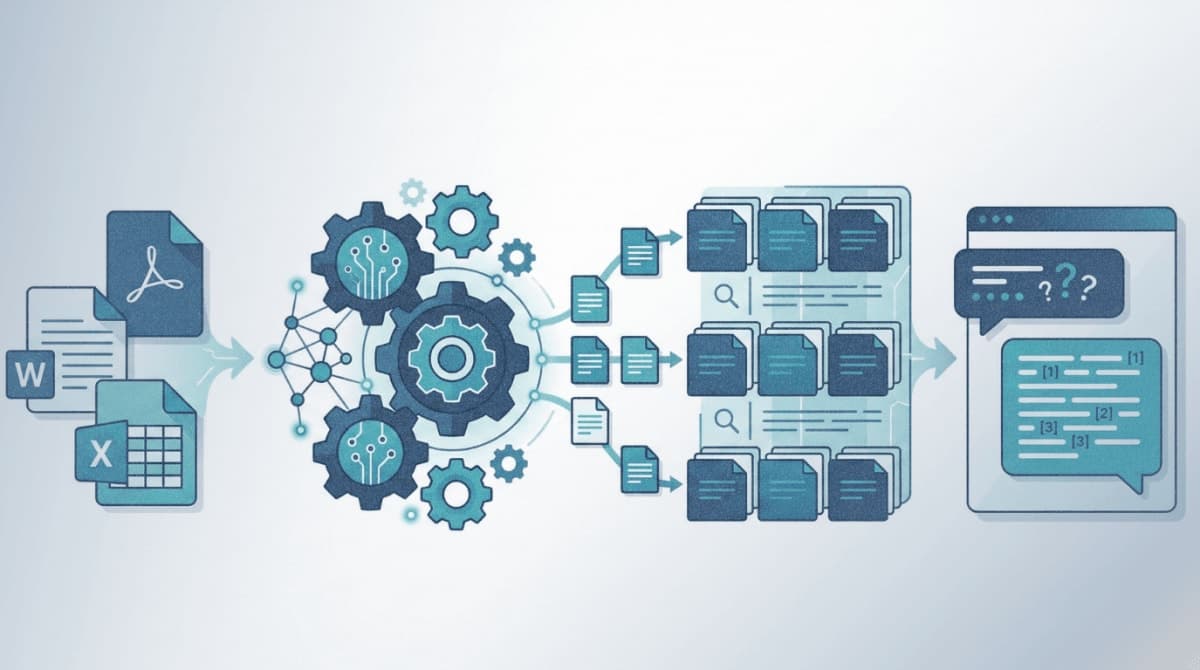
RAGFlow is an open-source retrieval-augmented generation engine that extracts information from complex documents (PDFs with tables, scanned images, slides) and connects them to LLMs for grounded question-answering. This guide walks through local deployment, LLM configuration, document ingestion, and creating your first chat assistant.
Getting Started
RAGFlow runs as a set of Docker containers: the main application, Elasticsearch (or Infinity) for search, MySQL for metadata, MinIO for file storage, and Redis for caching.
System Requirements
Verify your system meets these minimums:
- CPU: 4+ cores (x86 architecture)
- RAM: 16GB minimum (32GB recommended for large documents)
- Disk: 50GB free space
- Docker: Version 24.0.0 or higher
- Docker Compose: Version 2.26.1 or higher
Check your Docker version:
docker --version
docker compose version
If Docker is not installed, follow the official installation guide at docs.docker.com/engine/install for your operating system.
Configure System Memory Settings
Elasticsearch requires a specific kernel parameter. Without this, the Elasticsearch container will crash with "Can't connect to ES cluster" errors.
Check the current value:
sysctl vm.max_map_count
If the value is below 262144, update it:
sudo sysctl -w vm.max_map_count=262144
Make the change permanent by adding this line to /etc/sysctl.conf:
vm.max_map_count=262144
macOS users with Docker Desktop: Run this command instead:
docker run --rm --privileged --pid=host alpine sysctl -w vm.max_map_count=262144
Windows users with WSL 2: Run in WSL:
wsl -d docker-desktop -u root
sysctl -w vm.max_map_count=262144
For permanent changes on Windows, add to %USERPROFILE%\.wslconfig:
[wsl2]
kernelCommandLine = "sysctl.vm.max_map_count=262144"
Step-by-Step Installation
Step 1: Clone the RAGFlow Repository
git clone https://github.com/infiniflow/ragflow.git
cd ragflow/docker
git checkout -f v0.22.1
The checkout command pins you to a stable release. Using main branch may introduce breaking changes.
Expected result: A ragflow directory containing docker, docs, rag, and other subdirectories.
Step 2: Start the Docker Containers
For CPU-only document processing:
docker compose -f docker-compose.yml up -d
For GPU-accelerated document parsing (requires NVIDIA GPU):
sed -i '1i DEVICE=gpu' .env
docker compose -f docker-compose.yml up -d
The first run downloads approximately 2GB of container images. This takes 5-15 minutes depending on your connection.
Expected result: Five containers start: docker-ragflow-cpu-1, ragflow-es-01, ragflow-mysql, ragflow-minio, and ragflow-redis.
Step 3: Verify Server Startup
Monitor the RAGFlow container logs:
docker logs -f docker-ragflow-cpu-1
Wait for this output:
     ____   ___    ______ ______ __
    / __ \ /   |  / ____// ____// /____  _      __
   / /_/ // /| | / / __ / /_   / // __ \| | /| / /
  / _, _// ___ |/ /_/ // __/  / // /_/ /| |/ |/ /
 /_/ |_|/_/  |_|\____//_/    /_/ \____/ |__/|__/

 * Running on all addresses (0.0.0.0)
This indicates the server is ready. Press Ctrl+C to exit the log view.
Step 4: Access the Web Interface
Open your browser and navigate to:
http://localhost
Or if accessing from another machine on your network:
http://YOUR_SERVER_IP
Port 80 is the default. If you need to change it, edit docker-compose.yml and change 80:80 to YOUR_PORT:80.
Expected result: The RAGFlow login page appears. Create an account to proceed.
How to Configure LLM Providers
RAGFlow requires an LLM for generating answers. It supports cloud providers (OpenAI, Anthropic, Azure, Google) and local deployments (Ollama, Xinference).
Option A: Cloud LLM Setup
- Click your profile icon (top right) > Model providers
- Select your provider (OpenAI, Anthropic, etc.)
- Enter your API key
- Click System Model Settings
- Select default models for:
- Chat model (e.g., gpt-4o, claude-3-5-sonnet)
- Embedding model (e.g., text-embedding-3-small)
- Image-to-text model (optional, for processing images in documents)
Expected result: The model provider shows a green checkmark indicating successful connection.
Option B: Local LLM with Ollama
If you prefer running models locally without sending data to external APIs:
- Install and start Ollama on a machine accessible to RAGFlow:
docker run -d --name ollama -p 11434:11434 ollama/ollama
docker exec -it ollama ollama pull llama3.2
docker exec -it ollama ollama pull nomic-embed-text
- In RAGFlow, go to Model providers > Ollama
- Enter the Ollama server URL:
http://YOUR_OLLAMA_IP:11434 - The available models will populate automatically
If RAGFlow runs on the same machine as Ollama, use the Docker network IP (not localhost). Find it with:
docker inspect ollama | grep IPAddress
Option C: OpenAI-Compatible APIs
For models not explicitly listed but compatible with OpenAI's API format:
- Go to Model providers > OpenAI-API-Compatible
- Enter the base URL and API key
- Manually specify model names
How to Create a Knowledge Base
A knowledge base (called "dataset" in RAGFlow) is a collection of parsed documents that the chat assistant searches when answering questions.
Step 1: Create a New Dataset
- Click Dataset in the top navigation
- Click Create dataset
- Enter a name (e.g., "Product Documentation")
- Click OK
Step 2: Configure Parsing Settings
You're now on the dataset configuration page. Key settings:
Embedding model: Select the model that converts text to vectors. Once documents are parsed with a specific embedding model, you cannot change it for that dataset.
Chunking method: RAGFlow offers templates optimized for different document types:
| Template | Best For |
|---|---|
| General | Mixed content, articles, reports |
| Q&A | FAQ documents, interview transcripts |
| Manual | Technical manuals with structured sections |
| Table | Spreadsheets, CSV files |
| Paper | Academic papers with citations |
| Book | Long-form content with chapters |
| Laws | Legal documents, regulations |
| Presentation | PowerPoint slides |
| Picture | Image-heavy documents |
| One | Treat entire document as single chunk |
For most business documents, start with General.
Step 3: Upload Documents
- Click + Add file > Local files
- Select files from your computer
Supported formats:
- Documents: PDF, DOC, DOCX, TXT, MD, MDX
- Spreadsheets: CSV, XLSX, XLS
- Presentations: PPT, PPTX
- Images: JPEG, JPG, PNG, TIF, GIF
Maximum file size: 1GB per file (configurable in docker/.env)
Step 4: Parse Documents
- In the file list, click the play button next to each file
- Wait for parsing to complete (progress bar shows percentage)
Parsing time depends on document complexity. A 50-page PDF with tables typically takes 2-5 minutes on CPU, faster with GPU acceleration.
Expected result: Status changes to a green checkmark when complete.
How to Review and Edit Chunks
RAGFlow's differentiator is visibility into how documents are chunked. This allows manual intervention when automatic parsing produces suboptimal results.
View Chunking Results
- Click on a parsed file to open the chunk viewer
- Each chunk appears as a card with the extracted text
- Hover over chunks to see the source location in the original document
Edit Chunks
Double-click any chunk to edit:
- Add keywords: Boost this chunk's ranking for queries containing specific terms
- Add questions: Associate specific questions with this chunk
- Edit text: Fix OCR errors or formatting issues
- Split/merge: Adjust chunk boundaries
Test Retrieval
Before creating a chat assistant, verify your configuration retrieves relevant content:
- In the dataset view, find Retrieval testing (right panel)
- Enter a test question
- Review which chunks are retrieved and their relevance scores
If irrelevant chunks appear, adjust your chunking method or add keywords to improve ranking.
How to Build a Chat Assistant
Step 1: Create the Assistant
- Click Chat in the top navigation
- Click Create chat
- Enter a name for your assistant
Step 2: Configure Chat Settings
Click your new assistant to open configuration:
Datasets: Select one or more knowledge bases to search. Multi-dataset selection allows cross-referencing different document collections.
Empty response: What the assistant says when no relevant information is found. Options:
- Leave blank: The LLM will attempt to answer from its training data (may hallucinate)
- Enter a message: Forces the assistant to only answer from your documents (e.g., "I couldn't find information about that in the available documents.")
System prompt: Instructions that guide the LLM's behavior. The default works for most cases. Customize for specific personas or response formats.
Step 3: Adjust Retrieval Parameters
Click the Prompt engine tab:
TopN: Number of chunks to retrieve (default: 6). Increase for complex queries requiring more context. Decrease if responses include irrelevant information.
Similarity threshold: Minimum relevance score (0-1). Higher values return only highly relevant chunks but may miss useful information. Start at 0.2 and adjust based on results.
Multi-turn optimization: Enable to use conversation history when reformulating queries. Useful for follow-up questions.
Step 4: Start Chatting
Return to the chat interface and send a message. The assistant will:
- Search your knowledge base for relevant chunks
- Pass retrieved chunks to the LLM as context
- Generate a response grounded in your documents
- Display citations linking to source chunks
Expected result: Responses include bracketed citations (e.g., [1], [2]) that correspond to retrieved document sections.
Troubleshooting
Symptom: "network anomaly" error when accessing the web interface
Fix: The server hasn't finished initializing. Run docker logs -f docker-ragflow-cpu-1 and wait for the startup banner. This typically takes 2-3 minutes on first run.
Symptom: Document parsing stalls at under 1%
Fix: Check if RAGFlow can reach huggingface.co (required for OCR models). If blocked, add HF_ENDPOINT=https://hf-mirror.com to docker/.env and restart containers.
Symptom: "Can't connect to ES cluster" error
Fix: The vm.max_map_count value reset after reboot. Run sudo sysctl -w vm.max_map_count=262144 and restart RAGFlow with docker compose restart.
Symptom: Parsing stalls near completion with no errors
Fix: Out of memory. Increase MEM_LIMIT in docker/.env and restart. 16GB minimum, 32GB recommended for large PDFs.
Symptom: Ollama models not appearing in RAGFlow
Fix: Verify network connectivity. From the RAGFlow container, the Ollama URL must be reachable. Use the Docker network IP, not localhost, when both run on the same host.
Symptom: "Range of input length should be [1, 30000]" error
Fix: Too many chunks match the query. Reduce TopN or increase Similarity threshold in chat configuration.
What's Next
Your RAGFlow instance is running with a functional chat assistant. For API integration, see the HTTP API Reference at ragflow.io/docs/dev/http_api_reference.
PRO TIPS
- Press
Ctrl+Enterto send messages in the chat interface without clicking the button - Use the AI Search feature (magnifying glass icon) for quick single-turn queries when debugging retrieval settings
- Export datasets via the API for backup:
GET /api/v1/datasets/{dataset_id}/export - Monitor container resource usage with
docker statsto identify memory bottlenecks during heavy parsing - Set
DOC_ENGINE=infinityin.envto switch from Elasticsearch to Infinity for improved performance on large deployments
COMMON MISTAKES
Changing embedding models after parsing: Once files are parsed with a specific embedding model, that model is locked for the dataset. Create a new dataset if you need different embeddings.
Using localhost for Ollama URL when both run in Docker: Containers have isolated networks. Use the container's IP address or Docker network hostname instead.
Forgetting to restart containers after .env changes: Environment variables only load at container startup. Run
docker compose down && docker compose up -dafter editing.env.Setting similarity threshold too high: A threshold of 0.8+ often returns zero results even for relevant queries. Start at 0.2 and increase gradually.
PROMPT TEMPLATES
Knowledge Base Q&A System Prompt
You are a helpful assistant that answers questions based only on the provided context.
If the context doesn't contain relevant information, say "I don't have information about that in the available documents."
Always cite your sources using the chunk numbers provided.
Format responses in clear paragraphs, not bullet points unless specifically asked.
Customize by: Adding domain-specific terminology or response format requirements (e.g., "Always include relevant regulation numbers for compliance questions").
Example output: "Based on the product specifications [1], the maximum operating temperature is 85°C. The warranty documentation [3] notes that exceeding this limit voids coverage."
Document Summarization Prompt
Summarize the key points from the provided context in 3-5 sentences.
Focus on actionable information and specific data points.
Do not include information not present in the context.
Customize by: Specifying the audience (e.g., "for executive leadership" or "for technical implementers").
FAQ
Q: Can I use RAGFlow without Docker? A: Yes, but it requires manual setup of Python dependencies, Elasticsearch, MySQL, MinIO, and Redis. The Docker deployment handles all infrastructure. Source installation instructions are at ragflow.io/docs/dev/launch_ragflow_from_source.
Q: How much does RAGFlow cost? A: RAGFlow is free and open-source under the Apache 2.0 license. You pay only for your chosen LLM provider's API usage or your own compute resources for local models.
Q: What's the difference between demo.ragflow.io and self-hosted? A: The demo showcases RAGFlow Enterprise with enhanced models and team features. Self-hosted uses the open-source version. API access is only available on self-hosted deployments.
Q: Can RAGFlow handle scanned PDFs? A: Yes. RAGFlow includes OCR (optical character recognition) models that extract text from scanned documents and images. Processing time is longer than native PDFs.
Q: How do I upgrade to a newer RAGFlow version?
A: Pull the latest code, update the image tag in .env, and restart: git pull && docker compose pull && docker compose up -d. Check release notes for breaking changes before upgrading.
Q: Does RAGFlow support multiple languages? A: Yes. RAGFlow supports cross-language queries as of v0.22.0. Document parsing works best with English, Chinese, Japanese, and Korean. Other languages depend on your embedding model's training data.
RESOURCES
- Official Documentation: Complete guides for all features including agent workflows and API reference
- GitHub Repository: Source code, issue tracker, and community discussions
- Discord Community: Real-time support from developers and users
- Online Demo: Try RAGFlow without installation (limited features)