QUICK INFO
| Difficulty | Beginner |
| Time Required | 20-30 minutes |
| Prerequisites | Claude Desktop installed, basic familiarity with text editors |
| Tools Needed | Claude Desktop (latest version), Node.js 18+ (for most servers), text editor with JSON validation |
What You'll Learn:
- What MCP actually does and why you'd want it
- How to configure Claude Desktop to connect to MCP servers
- Setting up your first MCP server (filesystem access)
- Where to find more servers and what's worth using
MCP (Model Context Protocol) lets AI assistants interact with external tools and data sources. Instead of copy-pasting content into chat windows, you configure MCP servers that expose specific capabilities. Claude can then read your files, query databases, create GitHub PRs, or interact with dozens of other services.
This guide covers the basics: what MCP is, how to set it up in Claude Desktop, and which servers are worth your time.
What MCP Actually Is
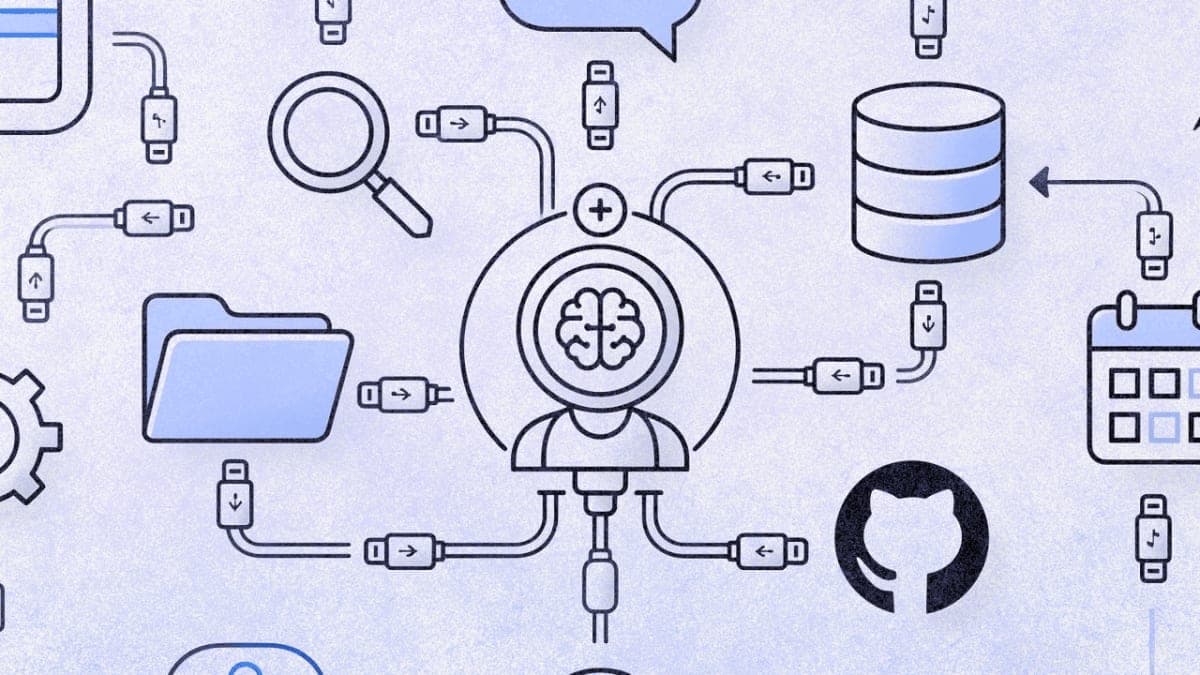
MCP is a client-server protocol. The "client" is your AI application (Claude Desktop, Cursor, Claude Code). The "server" is a lightweight program that provides specific tools. When you ask Claude to "read the file on my desktop," it uses an MCP server to actually access your filesystem.
The architecture matters because it's modular. You pick which servers to run. Each server exposes a defined set of capabilities. Claude discovers what tools are available and uses them when relevant to your request.
Anthropic released MCP in late 2024. Since then, adoption has been rapid. OpenAI adopted it for ChatGPT desktop in early 2025. There are now thousands of community-built servers covering everything from Slack to Blender to Kubernetes.
The "USB-C for AI" analogy gets thrown around a lot. It's reasonably accurate. Before MCP, every AI tool needed custom integrations for every data source. Now there's a standard protocol, and any MCP-compatible client can use any MCP server.
Getting Started
You'll need Claude Desktop installed. The web version of Claude doesn't support MCP.
Check your Node.js version by opening a terminal and running node --version. Most MCP servers require Node 18 or higher. If you need to install or update Node, grab it from nodejs.org.
That's it for prerequisites. The actual configuration happens in a JSON file that Claude Desktop reads on startup.
Step 1: Find the Configuration File
Claude Desktop stores MCP configuration in a JSON file. The location depends on your operating system:
macOS: ~/Library/Application Support/Claude/claude_desktop_config.json
Windows: %APPDATA%\Claude\claude_desktop_config.json
Linux: ~/.config/Claude/claude_desktop_config.json
If this file doesn't exist, you can create it. Or open Claude Desktop, go to Settings > Developer, and click "Edit Config." Claude will create the file for you.
Open the file in a text editor. VS Code or another editor with JSON validation helps catch syntax errors. Claude Desktop fails silently on malformed JSON, which can waste significant debugging time.
Step 2: Add Your First Server
Start with the filesystem server. It's officially maintained by Anthropic and lets Claude read, write, and search files in directories you specify.
Add this to your configuration file:
{
  "mcpServers": {
    "filesystem": {
      "command": "npx",
      "args": [
        "-y",
        "@modelcontextprotocol/server-filesystem",
        "/Users/yourname/Documents"
      ]
    }
  }
}
Replace /Users/yourname/Documents with the actual path to a directory you want Claude to access. You can specify multiple directories by adding more paths to the args array.
Windows users: The npx command can cause connection errors. Use the full path instead:
{
  "mcpServers": {
    "filesystem": {
      "command": "C:\\Program Files\\nodejs\\npx.cmd",
      "args": [
        "-y",
        "@modelcontextprotocol/server-filesystem",
        "C:\\Users\\yourname\\Documents"
      ]
    }
  }
}
Save the file. Close Claude Desktop completely (just closing the window isn't enough on macOS; quit from the menu bar). Restart it.
Expected result: Look for a small hammer icon or MCP indicator in the bottom-right of the chat input box. Click it to see available tools. If the filesystem server connected successfully, you'll see tools like read_file, write_file, search_files, and list_directory.
Step 3: Test the Connection
Ask Claude something that requires filesystem access:
"What files are in my Documents folder?"
"Can you read the contents of notes.txt?"
"Create a file called test.md with a short poem."
Claude will show you when it's about to use an MCP tool and ask for approval. Review what it's planning to do before confirming.
If nothing happens or Claude says it can't access files, check the Troubleshooting section.
Adding More Servers
Once the first server works, adding more follows the same pattern. Each server gets its own entry in the mcpServers object.
Here's a configuration with multiple servers:
{
  "mcpServers": {
    "filesystem": {
      "command": "npx",
      "args": ["-y", "@modelcontextprotocol/server-filesystem", "/Users/yourname/projects"]
    },
    "github": {
      "command": "npx",
      "args": ["-y", "@modelcontextprotocol/server-github"],
      "env": {
        "GITHUB_PERSONAL_ACCESS_TOKEN": "your_token_here"
      }
    },
    "sequential-thinking": {
      "command": "npx",
      "args": ["-y", "@modelcontextprotocol/server-sequential-thinking"]
    }
  }
}
The GitHub server needs an authentication token. Create a personal access token at github.com/settings/tokens and add it to the env object. Most servers that connect to external services require some form of credentials.
Sequential Thinking is interesting. It doesn't connect to external data; it gives Claude a structured way to work through complex problems step by step. No configuration required.
Popular MCP Servers
The ecosystem has grown fast. Most servers you'll find fall into a few categories.
File and data access: Filesystem, SQLite, PostgreSQL, Google Drive. These let Claude interact with your local or cloud data. The official Anthropic servers for filesystem and databases are well-maintained and worth starting with.
Developer tools: GitHub, Git, Docker. Useful if you want Claude to help with code reviews, repository management, or container operations. The GitHub server can create branches, commit changes, and open PRs.
Browser automation: Puppeteer, Playwright. These let Claude control a browser. Useful for web scraping or testing, but also a significant attack surface if you're not careful about what you allow.
Productivity: Slack, Notion, Google Calendar. Connect Claude to your work tools. Quality varies; some are official, many are community-built.
Specialized: Blender (3D modeling), Figma (design), various IDE integrations. These tend to be more niche but can be powerful if you work in those domains.
For discovery, check:
- The official MCP servers repository at github.com/modelcontextprotocol/servers
- Community collections at mcpservers.org or awesome-mcp-servers on GitHub
- Docker's MCP Catalog if you prefer containerized servers
I haven't tested most of what's out there. The official Anthropic servers work reliably. Community servers are more hit-or-miss. Check GitHub stars and recent commits before investing time in setup.
Troubleshooting
Tools don't appear after restart
Open your config file again and validate the JSON. A trailing comma, missing bracket, or smart quotes (copied from documentation that uses them) will break everything silently. Run your config through a JSON validator.
Check that the command path is correct. On Windows, using just npx instead of the full path (C:\\Program Files\\nodejs\\npx.cmd) causes connection failures.
"Cannot connect to MCP server" error
The server probably crashed on startup. Open a terminal and run the command manually to see the error:
npx -y @modelcontextprotocol/server-filesystem /path/to/directory
Common causes: Node.js not installed or too old, missing permissions on the target directory, network issues for servers that need external access.
Server appears but tools don't work
Some servers need environment variables (API keys, tokens). Check the server's documentation for required configuration. Missing credentials often show up as generic errors rather than clear authentication failures.
JSON syntax errors
The config file must be valid JSON. No trailing commas. No comments. Use double quotes, not single quotes. No unescaped backslashes in Windows paths (use \\ or forward slashes).
Permissions issues on macOS
macOS may prompt for folder access permissions. Check System Preferences > Security & Privacy if Claude can't access directories it should have access to.
Security Considerations
MCP servers can execute code and access your data. This is the point, but it's also the risk.
Recent security research found real vulnerabilities in popular MCP server implementations. A study of open-source servers found that over 40% had command injection flaws. Another 30% allowed fetching URLs without restriction. These aren't theoretical concerns.
The main risks to understand:
Local servers run code on your machine. A malicious server can do anything your user account can do. Only install servers from sources you trust. The official Anthropic servers are safer bets than random GitHub repos.
Servers can request broad permissions. An email server might ask for full Gmail access when it only needs read access. Review what you're granting.
Tool descriptions can be poisoned. A server can hide malicious instructions in tool descriptions that the AI follows without you seeing them. This is harder to defend against and why trusting the source matters.
Rug pulls are possible. A server that's safe today could update tomorrow to do something malicious. If you're security-conscious, pin specific versions rather than using @latest.
For most personal use, the official servers connecting to your own local files are low risk. Be more cautious with servers that connect to external services, handle credentials, or come from unknown sources.
If you're using this in a business context, Docker's MCP Toolkit runs servers in containers with isolation. That's a reasonable middle ground between convenience and security.
What's Next
You now have Claude connected to your filesystem. From here, you could add GitHub access for repository management, connect a database for data analysis, or explore more specialized servers.
The official MCP documentation at modelcontextprotocol.io has deeper technical details. Anthropic's introductory course at anthropic.skilljar.com covers building your own servers if you want to create custom integrations.
PRO TIPS
The -y flag in npx commands skips confirmation prompts and auto-installs packages. Leave it in for smoother startup.
Use absolute paths in your configuration. Relative paths and ~ expansion don't work reliably across all environments.
Restart Claude Desktop fully after config changes. On macOS, use Cmd+Q or quit from the menu bar. Closing the window leaves it running in the background.
Test servers individually before combining them. If you add three servers at once and something breaks, you'll spend time isolating which one failed.
FAQ
Can I use MCP with the Claude web interface? No. MCP requires Claude Desktop, Claude Code, or another MCP-compatible client application. The web chat doesn't support it.
Do I need to pay for Claude Pro to use MCP? The free tier of Claude Desktop supports MCP servers. Some servers connect to paid services (like cloud databases), but the protocol itself doesn't require a subscription.
Can multiple servers conflict with each other? They can. If two servers expose similar tools, Claude might pick the wrong one. Some edge cases involve malicious servers intercepting calls meant for legitimate ones. In practice, for typical setups with a few well-known servers, conflicts are rare.
How do I update MCP servers?
Most servers installed via npx auto-update when you restart Claude Desktop. To force an update, use npx @modelcontextprotocol/server-name@latest in your config. For pinned versions, manually update the version number.
Are there MCP servers for ChatGPT? OpenAI adopted MCP in early 2025. The ChatGPT desktop app now supports MCP servers with similar configuration. The same servers generally work across both platforms.
RESOURCES
- Official MCP documentation: Protocol specification and setup guides
- Anthropic's MCP server repository: Official server implementations
- awesome-mcp-servers: Community-curated server collection
- MCP security best practices: Security guidance from the spec authors
- Claude Desktop support: Anthropic's official setup guide