QUICK INFO
| Difficulty | Intermediate |
| Time Required | 30-45 minutes |
| Prerequisites | Node.js v18+, running n8n instance (local or cloud), basic terminal familiarity |
| Tools Needed | Claude Code CLI, n8n API key, npm/npx |
What You'll Learn:
- Configure n8n-mcp as an MCP server in Claude Code
- Install n8n-skills plugin for enhanced workflow generation
- Generate complete n8n workflows from natural language prompts
- Validate and deploy workflows directly to your n8n instance
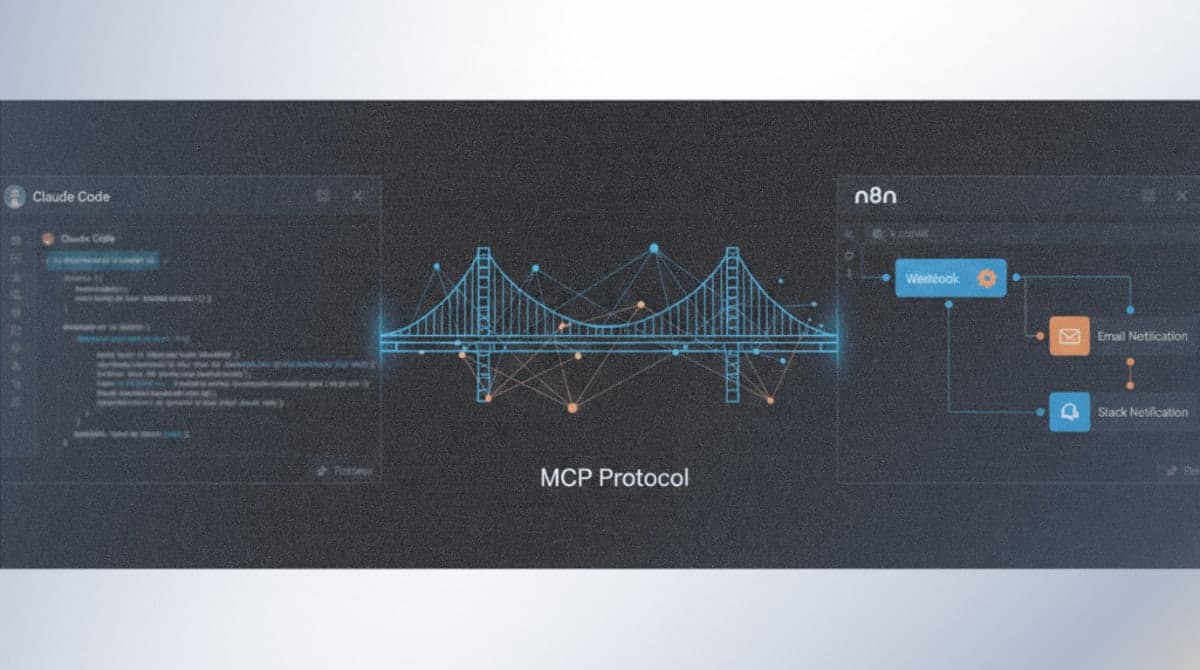
This guide configures Claude Code to create, validate, and deploy n8n workflows using the n8n-mcp server and n8n-skills plugin. The setup gives Claude deep knowledge of n8n's 545 nodes, 2,700+ workflow templates, and correct expression syntax.
The target audience: developers and automation specialists who use n8n and want to accelerate workflow creation. You need a working n8n instance and comfort running terminal commands.
Getting Started
Verify Prerequisites
Open your terminal and confirm Node.js is installed:
node --version
Expected result: v18.0.0 or higher. If not installed, download from nodejs.org.
Verify Claude Code is installed:
claude --version
Expected result: Version number displayed. If not installed, run:
npm install -g @anthropic-ai/claude-code
Get Your n8n API Credentials
Log into your n8n instance. Navigate to Settings > n8n API.
Click "Create API Key" and copy the generated key. Store this securely.
Note your n8n instance URL:
- Cloud:
https://your-instance.app.n8n.cloud - Self-hosted:
http://localhost:5678or your custom domain
Step-by-Step Process
Step 1: Add the n8n-mcp Server to Claude Code
The n8n-mcp server gives Claude access to n8n node documentation, workflow templates, and validation tools. Add it using the Claude Code CLI:
claude mcp add n8n-mcp -s user -e MCP_MODE=stdio -e LOG_LEVEL=error -e DISABLE_CONSOLE_OUTPUT=true -- npx n8n-mcp
This adds the server at user scope, making it available across all your projects.
Expected result: Confirmation message showing the server was added.
Step 2: Configure n8n API Credentials
To enable workflow deployment (not just generation), update your configuration with API credentials.
Open your Claude Code configuration file:
macOS:
code ~/Library/Application\ Support/Claude/claude_desktop_config.json
Linux:
code ~/.config/Claude/claude_desktop_config.json
Windows (in WSL):
code "$APPDATA/Claude/claude_desktop_config.json"
Locate the n8n-mcp server entry and add your credentials to the env object:
{
  "mcpServers": {
    "n8n-mcp": {
      "command": "npx",
      "args": ["n8n-mcp"],
      "env": {
        "MCP_MODE": "stdio",
        "LOG_LEVEL": "error",
        "DISABLE_CONSOLE_OUTPUT": "true",
        "N8N_API_URL": "https://your-instance.app.n8n.cloud",
        "N8N_API_KEY": "your-api-key-here"
      }
    }
  }
}
For local n8n instances running in Docker, use http://host.docker.internal:5678 as the URL and add "WEBHOOK_SECURITY_MODE": "moderate" to allow localhost webhooks.
Save the file.
Step 3: Install the n8n-skills Plugin
The n8n-skills plugin teaches Claude correct expression syntax, MCP tool usage patterns, workflow architecture, and node configuration. It significantly improves output quality.
Install using the Claude Code plugin command:
claude /plugin install czlonkowski/n8n-skills
Alternative method using the marketplace:
claude /plugin marketplace add czlonkowski/n8n-skills
claude /plugin install
Select "n8n-mcp-skills" from the list.
Expected result: Plugin installed confirmation. The plugin includes 7 skills: Expression Syntax, MCP Tools Expert, Workflow Patterns, Validation Expert, Node Configuration, Code JavaScript, and Code Python.
Step 4: Verify the Configuration
Launch Claude Code and check MCP server status:
claude
Inside Claude Code, run:
/mcp
Expected result: List showing n8n-mcp: connected status.
Test the connection by asking Claude to list available n8n tools:
What n8n MCP tools do you have access to?
Claude should respond with a list including search_nodes, get_node, validate_node, search_templates, get_template, and workflow management tools if API credentials are configured.
Step 5: Create Your First Workflow
Provide Claude with a clear workflow description. Be specific about triggers, actions, and conditions.
Example prompt:
Build an n8n workflow that:
1. Triggers on a webhook POST request
2. Extracts the "email" and "message" fields from the request body
3. Sends the message to a Slack channel called #notifications
4. Responds to the webhook with a success confirmation

Use the runtime validation profile before deploying.
Claude will:
- Search templates for similar workflows
- Look up node specifications using
get_node - Configure nodes with correct parameters
- Validate the configuration using
validate_node - Deploy to your n8n instance using
n8n_create_workflow(if API credentials are set)
Expected result: Claude provides the workflow JSON and optionally deploys it, returning a link to your n8n instance.
Step 6: Import Workflows Manually (Optional)
If you're not using API credentials, Claude generates workflow JSON that you import manually.
Copy the JSON output from Claude.
In n8n, click the menu icon (three dots) in the top right corner.
Select "Import from File" or paste directly using "Import from URL/JSON."
Paste the JSON and click "Import."
Review the imported workflow. Configure any credentials (Slack, Gmail, etc.) that the workflow requires.
Troubleshooting
Symptom: MCP server n8n-mcp failed to connect
Fix: Verify Node.js is installed and in your PATH. Run npx n8n-mcp directly in terminal to check for errors. The most common issue is missing Node.js or network restrictions blocking npm.
Symptom: Invalid JSON or broken nodes after import
Fix: Tell Claude what happened. It will rewrite and fix the workflow. Use the prompt: "The workflow import failed with invalid JSON. Please regenerate with valid syntax."
Symptom: Rate limit exceeded when using n8n API
Fix: Wait 60 seconds and retry. The n8n API has rate limits that Claude respects automatically on subsequent attempts.
Symptom: Workflows deploy but fail at runtime
Fix: Ask Claude to validate with the runtime profile: "Validate this workflow using the runtime validation profile." This catches parameter issues that pass basic validation.
Symptom: N8N_API_URL connection refused for local instances
Fix: For Docker-based n8n, use http://host.docker.internal:5678 instead of localhost. Add WEBHOOK_SECURITY_MODE=moderate to your environment variables.
What's Next
With the basic setup complete, explore the AI Agent workflow pattern in the n8n-skills documentation at github.com/czlonkowski/n8n-skills. The repository includes evaluation tests you can run to verify Claude's output quality for complex workflows.
PRO TIPS
- Use
search_templatesbefore building from scratch. The 2,700+ template library often has a starting point that saves configuration time. - Prefix workflow requests with "Use the runtime validation profile" to catch issues before deployment.
- For complex workflows, ask Claude to "show the workflow architecture for approval before building" to review the plan first.
- The
/mcpcommand in Claude Code shows context usage per server. If n8n-mcp consumes too much context, usedetail: 'minimal'in node queries. - Batch workflow updates using
n8n_update_partial_workflowwith multiple operations in a single call for 80-90% token savings.
COMMON MISTAKES
- Using wrong node type format: The MCP tools expect
n8n-nodes-base.slackformat, but some documentation showsnodes-base.slack. Always include the full prefix. If validation fails, check the nodeType string. - Trusting default parameter values: Default values cause runtime failures. Always explicitly configure all parameters. Example: Slack node requires
select: "channel"andchannelIdeven though they appear optional. - Skipping template search: Building from scratch takes 3-5x longer than adapting a template. Always search templates first, even for simple workflows.
- Importing directly to production: AI-generated workflows need testing. Always import to a development instance or inactive workflow first.
PROMPT TEMPLATES
Webhook to Notification Workflow
Build an n8n workflow that:
- Triggers on webhook POST to /form-submission
- Validates that the request body contains "name" and "email" fields
- If valid, sends a Slack message to #submissions with the data
- If invalid, responds with HTTP 400 and error message
- On success, responds with HTTP 200 and confirmation

Use runtime validation before providing the final workflow.
Customize by: Replace Slack with your notification service (Telegram, Discord, Email) and adjust the webhook path.
Example output: A 4-node workflow with Webhook trigger, IF node for validation, Slack node, and Respond to Webhook node with appropriate connections.
Data Sync Workflow
Create a scheduled n8n workflow that runs every hour and:
1. Fetches new rows from Google Sheets (sheet ID: YOUR_SHEET_ID)
2. Filters rows where status column equals "pending"
3. For each matching row, creates a record in Airtable (base: YOUR_BASE, table: Tasks)
4. Updates the Google Sheets row status to "synced"

Search templates first for Google Sheets to Airtable patterns.
Customize by: Replace Google Sheets and Airtable with your source and destination (Notion, PostgreSQL, MongoDB).
FAQ
Q: Can I use this with Claude Desktop instead of Claude Code? A: Yes. The n8n-mcp server works with Claude Desktop using the same configuration file. Add the JSON configuration to your Claude Desktop developer settings. The n8n-skills plugin is Claude Code specific, but you can paste the skill content into Claude Desktop project instructions.
Q: Do I need a paid Claude subscription? A: Claude Code requires a Claude Pro or Team subscription. The n8n-mcp server itself is free and open source.
Q: How do I update n8n-mcp when new versions release?
A: The npx command automatically fetches the latest version. To force an update, run npx n8n-mcp@latest or clear your npm cache with npm cache clean --force.
Q: Can Claude modify existing workflows or only create new ones?
A: Both. Use n8n_update_partial_workflow for modifications. Provide the workflow ID and describe the changes. Claude uses diff operations to update specific nodes without regenerating the entire workflow.
Q: What happens if n8n releases new nodes? A: The n8n-mcp maintainers update the server within days of major n8n releases. Check the changelog at github.com/czlonkowski/n8n-mcp for update frequency.
Q: Is my n8n API key sent to Anthropic? A: No. The MCP server runs locally on your machine. API credentials stay in your local configuration and communicate directly with your n8n instance.
RESOURCES
- n8n-mcp GitHub Repository: MCP server source, configuration options, and changelog
- n8n-skills GitHub Repository: Plugin source, skill documentation, and evaluation tests
- Claude Code MCP Documentation: Official guide for MCP server configuration
- n8n Node Reference: Official documentation for all 545 n8n nodes
- n8n Workflow Templates: Searchable library of 2,700+ community workflows