QUICK INFO
| Difficulty | Beginner |
| Time Required | 25-40 minutes |
| Prerequisites | Claude Pro, Max, Team, or Enterprise plan; Code execution enabled in Settings |
| Tools Needed | Claude.ai (web or app), text editor for SKILL.md files |
What You'll Learn:
- How Agent Skills work and why they matter
- Creating a custom skill from scratch
- Using pre-built Anthropic skills for document creation
- When to use skills versus other Claude features
Agent Skills are folders containing instructions, scripts, and resources that Claude loads when relevant to your task. Think of them as onboarding guides for specific workflows. This guide covers the core concepts, walks through creating your first skill, and shows practical applications you can use immediately.
Understanding Agent Skills
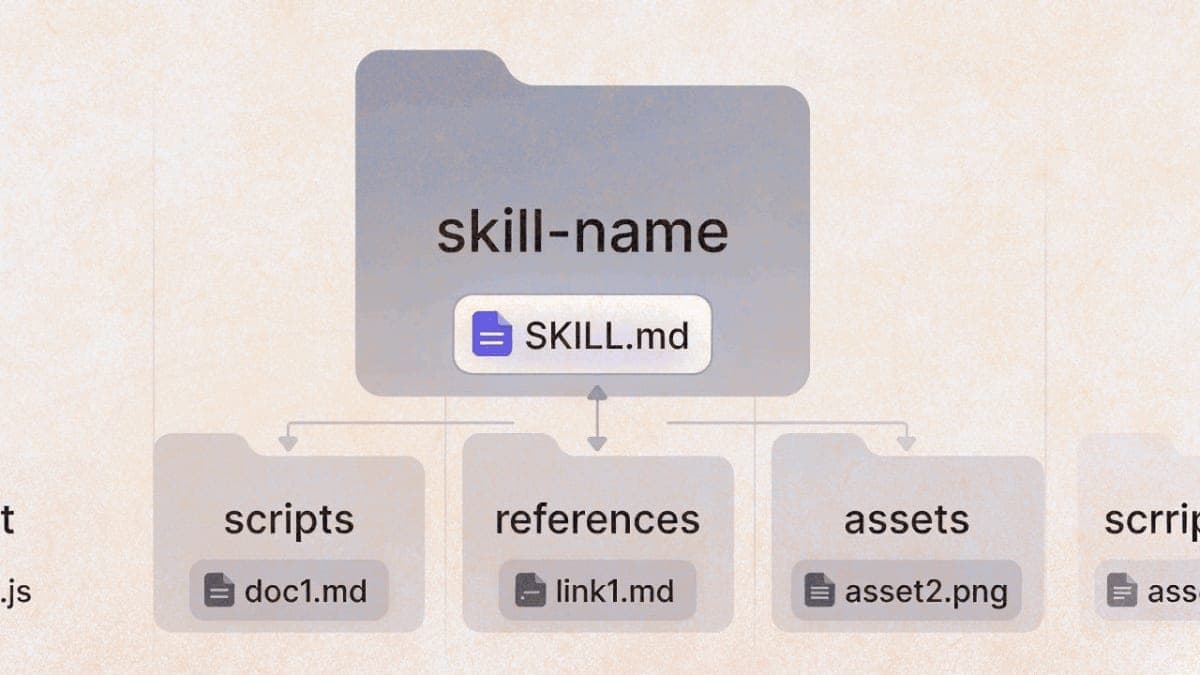
A skill is fundamentally just a folder with a SKILL.md file. The file starts with YAML frontmatter (name and description), followed by markdown instructions Claude follows when the skill activates.
my-skill/
├── SKILL.md          # Required: instructions + metadata
├── scripts/          # Optional: executable Python/Bash
├── references/       # Optional: additional documentation
└── assets/           # Optional: templates, resources
What makes this interesting is progressive disclosure. Claude doesn't load every skill into memory at startup. Instead, it reads only the name and description of available skills. When your request matches a skill's description, Claude pulls in the full instructions. If those instructions reference additional files, Claude reads those only as needed.
This keeps response times fast while giving Claude access to extensive specialized knowledge on demand.
How Claude Decides Which Skills to Use
At the start of a conversation, Claude's context contains metadata from all your enabled skills. Something like:
Available skills:
- pdf: Extract text, fill forms, merge documents
- brand-guidelines: Apply company colors and typography
- bigquery-analysis: Query internal sales databases
When you ask a question, Claude scans these descriptions. If your request involves PDFs, Claude reads the full pdf/SKILL.md into context and follows its instructions.
The description field does most of the work here. A vague description like "helps with documents" won't trigger reliably. A specific one like "Extract text and tables from PDF files, fill forms, merge documents. Use when working with PDF files or when the user mentions PDFs" gives Claude clear signals.
Getting Started
Enable skills in Claude.ai by going to Settings > Capabilities. You need "Code execution and file creation" turned on first, then toggle individual skills in the Skills section.
For Enterprise and Team plans, an admin must enable these at the organization level before individual members can access them.
Anthropic provides several pre-built skills for document creation: Excel spreadsheets with formulas, Word documents, PowerPoint presentations, and PDF processing. These activate automatically when you ask Claude to create these file types.
Try it: Ask Claude to "create an Excel spreadsheet comparing monthly sales figures for Q3, with a chart showing the trend." Claude will use the xlsx skill without you explicitly invoking it.
Creating Your First Skill
The minimal skill requires only a SKILL.md file with two frontmatter fields.
Step 1: Create the Folder Structure
Create a folder on your computer. Name it something like meeting-notes (lowercase, hyphens instead of spaces).
Inside, create a file called SKILL.md.
Step 2: Write the Frontmatter
The top of your file needs YAML frontmatter between triple dashes:
---
name: meeting-notes
description: Structures meeting notes into consistent format with action items, decisions, and next steps. Use when transcribing meetings or organizing discussion notes.
---
The name must match your folder name. Keep it lowercase with hyphens. Maximum 64 characters.
The description has a 1024 character limit. Include both what the skill does and when Claude should use it. This is the most important part for reliable activation.
Step 3: Add Instructions
Below the frontmatter, write markdown instructions Claude will follow:
# Meeting Notes Formatter

## Output Structure

Format all meeting notes with these sections:

### Meeting Details
- Date and time
- Attendees
- Meeting type (standup, planning, review, etc.)

### Discussion Summary
Brief overview of main topics discussed.

### Decisions Made
Numbered list of decisions with owners assigned.

### Action Items
| Owner | Task | Due Date |
|-------|------|----------|
| [Name] | [Specific task] | [Date] |

### Open Questions
Items requiring follow-up or clarification.

## Style Guidelines
- Keep summaries to 2-3 sentences per topic
- Use active voice for action items
- Include specific names, not "someone will..."
Step 4: Package and Upload
Zip your folder (the folder itself, not just the contents). Go to Settings > Capabilities > Skills, click "Upload skill," and select your zip file.
Expected result: Your skill appears in the Skills list. Toggle it on.
Step 5: Test It
Start a new conversation and paste some rough meeting notes. Ask Claude to format them. It should apply your structure without you mentioning the skill by name.
If Claude doesn't use your skill, check that the description includes relevant keywords. "Meeting notes" should appear in the description since that's what users typically say.
Working with Pre-Built Skills
Anthropic's document skills demonstrate more advanced patterns. Looking at the PDF skill structure:
pdf/
├── SKILL.md       # Main instructions
├── FORMS.md       # Form-filling details (loaded when needed)
├── REFERENCE.md   # API reference (loaded when needed)
└── scripts/       # Python utilities
The main SKILL.md stays under 300 lines. It covers quick start code, common operations, and points to FORMS.md for the specialized task of filling PDF forms.
When you ask Claude to extract text from a PDF, it reads SKILL.md. When you ask Claude to fill out a form, it reads SKILL.md, notices the reference to FORMS.md, and loads that file too.
This is the progressive disclosure pattern in practice. A skill can bundle thousands of lines of reference material without consuming context until needed.
Adding Scripts to Skills
Skills can include executable code. The Excel skill, for instance, includes a Python script for recalculating formulas.
Scripts work differently than instruction files. Claude executes them and receives only the output. The script code itself never enters the context window.
Example structure with a utility script:
data-validator/
├── SKILL.md
└── scripts/
    └── validate.py
In SKILL.md, reference it clearly:
## Validation

Run the validation script before finalizing:

```bash
python scripts/validate.py input.json
The script returns "OK" if valid, or lists specific errors.
Make the intent clear. "Run `validate.py`" means execute it. "See `validate.py` for the algorithm" means read it as reference.

## Skill Architecture Decisions

### When to Split Files

Keep SKILL.md under 500 lines. If you're exceeding that, split content into reference files.

Good candidates for separate files: detailed API documentation, domain-specific schemas, rarely-needed edge cases, extensive code examples.

Keep in SKILL.md: quick start instructions, the most common workflows, critical rules that always apply.

### Setting Degrees of Freedom

Match instruction specificity to how fragile the task is.

For a database migration where exact sequence matters, provide the exact command:

```markdown
Run exactly:
```bash
python scripts/migrate.py --verify --backup
Do not modify flags.
For code review where context determines approach, give guidelines:

```markdown
Focus on:
1. Potential bugs or edge cases
2. Readability improvements
3. Project convention adherence

Adapt emphasis based on the code's purpose.
Feedback Loops for Quality
For operations where errors compound, build validation into workflows:
## Document Editing Process

1. Make edits to the XML
2. Validate: `python scripts/validate.py`
3. If validation fails:
   - Review error message
   - Fix the issue
   - Validate again
4. Only proceed when validation passes
This catches problems before they propagate.
Common Patterns
Template Pattern
When output format matters, provide the exact structure:
## Report Format

Use this structure:

# [Title]

## Summary
[One paragraph overview]

## Findings
[Detailed analysis]

## Recommendations
1. [Specific action]
2. [Specific action]
Conditional Workflows
Guide Claude through decision points:
## Document Handling

**New document?** → Use docx-js library, build from scratch
**Editing existing?** → Unpack, modify XML, validate, repack

For existing documents, follow the editing workflow in EDITING.md.
Domain Organization
For skills covering multiple domains, organize by topic:
analytics-skill/
├── SKILL.md
└── reference/
    ├── sales.md
    ├── finance.md
    └── marketing.md
SKILL.md points Claude to the right reference file. Claude reads only what's relevant to the current query.
Skills vs Other Claude Features
Skills solve a specific problem: teaching Claude repeatable procedures for specialized tasks. They're not the right tool for everything.
Use skills when: You have a workflow you repeat frequently, need consistent output format, want Claude to follow specific procedures, or need to bundle reference material that's too large for system prompts.
Use Projects when: You need static background knowledge always available in a particular context. Projects load their content every time; skills load on demand.
Use Custom Instructions when: You want behavior changes across all conversations (tone, format preferences). Instructions are broad; skills are task-specific.
Use MCP when: You need Claude to connect to external services or data sources. MCP provides tools; skills teach Claude how to use tools effectively. Actually, you can use both together.
Troubleshooting
Skill isn't activating: Check the description field. Does it contain keywords that match how you're phrasing requests? Try being more explicit: "Use my meeting-notes skill to format these notes."
Upload errors: The folder name must match the name field in frontmatter. No spaces or uppercase letters in the name. SKILL.md must exist in the root of the folder.
Claude reads only part of a file: Deep nesting causes this. Keep reference files one level from SKILL.md. If you have SKILL.md → advanced.md → details.md, Claude might preview rather than fully read the nested file.
Scripts not running: Verify the packages are available. claude.ai can install from PyPI and npm. The API version has no network access and requires pre-installed packages.
What's Next
The skill-creator skill in Anthropic's repository provides interactive guidance for building skills. It asks about your workflow, generates the folder structure, and formats everything correctly.
For more complex examples, browse https://github.com/anthropics/skills. The document skills (docx, xlsx, pptx, pdf) show production-level patterns with extensive reference files and utility scripts.
PRO TIPS
The description field supports up to 1024 characters. Use that space. Include both what the skill does and the specific triggers that should activate it. "Use when the user mentions X, Y, or Z" helps Claude match requests reliably.
Test with different models if you plan to use your skill across Haiku, Sonnet, and Opus. What works for Opus might need more detail for Haiku.
Use forward slashes in file paths even on Windows. scripts/helper.py works everywhere; scripts\helper.py breaks on Unix systems.
When referencing files in SKILL.md, use relative paths: [details](REFERENCE.md) not absolute paths.
FAQ
Q: Do skills work in the Claude mobile app? A: Yes, skills work across Claude.ai web, desktop, and mobile apps. Enable them in Settings > Capabilities.
Q: Can I share skills with my team? A: Currently, each user must upload skills to their own account. Team-wide distribution requires each member to upload separately, or you can use the API for programmatic management.
Q: How many skills can I have enabled? A: No hard limit, but remember that skill metadata (names and descriptions) loads into context at startup. Keep active skills focused on what you actually use.
Q: What happens if two skills could apply to my request? A: Claude evaluates descriptions and picks the most relevant one. Writing specific descriptions prevents overlap. If you want both skills used, mention them explicitly.
Q: Can skills call external APIs? A: In claude.ai, skills can make network requests. The API version runs in a restricted environment without network access. Check the code execution documentation for current limitations.
RESOURCES
- Agent Skills Overview: Official documentation covering architecture and usage
- Anthropic Skills Repository: Example skills including document creation, design, and workflows
- Best Practices Guide: Detailed authoring guidance for effective skills
- Equipping Agents with Skills: Engineering blog explaining the architecture decisions
PROMPT TEMPLATES
Creating a Skill with Claude's Help
I want to create a skill for [specific workflow]. Here's what I need it to do:

1. [Task 1]
2. [Task 2]
3. [Task 3]

The output should follow this format: [describe format]

Please create a SKILL.md file with appropriate frontmatter and instructions.
Customize by: Replace the bracketed sections with your actual workflow steps and format requirements.
Example output: Claude generates a complete SKILL.md with frontmatter containing name, description, and markdown body with your workflow instructions, ready to save and upload.