QUICK INFO
| Difficulty | Beginner |
| Time Required | 10-15 minutes |
| Prerequisites | Claude Pro, Max, Team, or Enterprise subscription |
| Tools Needed | Claude.ai (December 2025 interface) |
What You'll Learn:
- Enable Skills in your Claude account settings
- Use the built-in skill-creator to generate custom Skills
- Upload and test your first custom Skill
- Iterate when a Skill doesn't work correctly
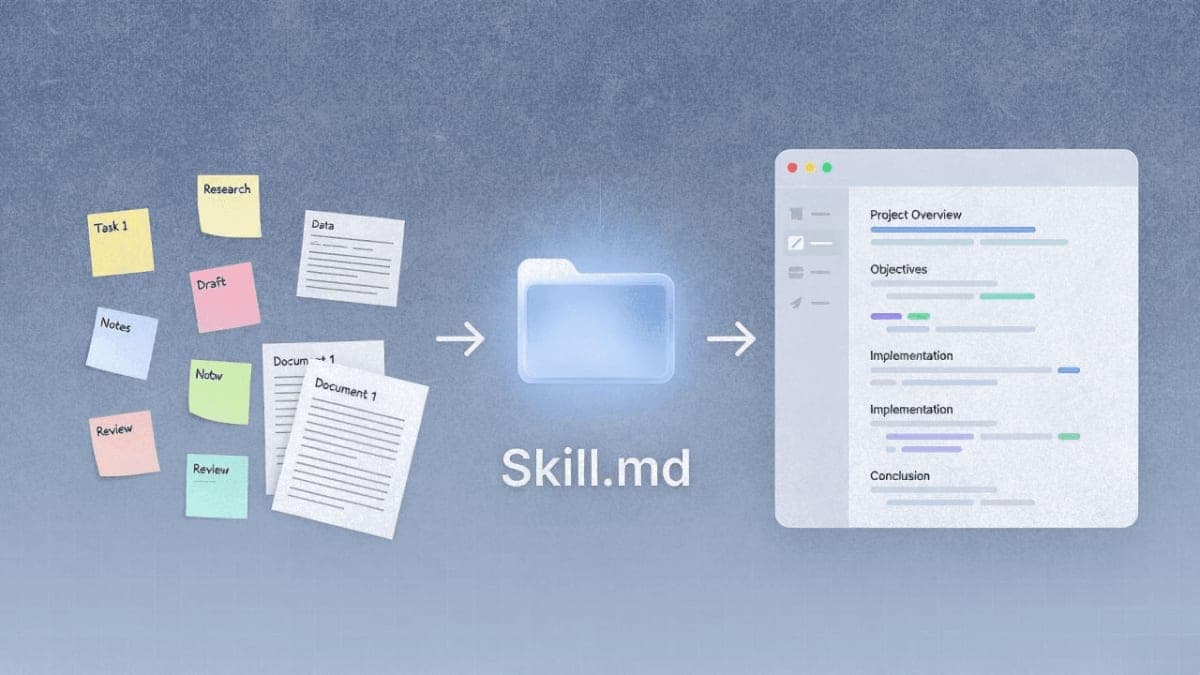
Claude Skills are folders of instructions that teach Claude how to handle specific tasks. The built-in skill-creator guides you through creating one conversationally. You describe what you want, it asks clarifying questions, then it generates a downloadable ZIP file you upload to your settings.
This guide covers the web interface at claude.ai. If you're using Claude Code or the API, the process differs.
Getting Started
Open Claude settings by clicking your profile icon in the bottom-left corner of claude.ai, then selecting Settings. Navigate to Capabilities.
Two things need to be on: Code execution and file creation (required for Skills to function), and the Skills section itself should be visible below it. If you're on a Team or Enterprise plan, your admin may need to enable Skills at the organization level first.
Once enabled, you'll see a list of Anthropic's built-in Skills (Excel, Word, PowerPoint, PDF creation). These activate automatically when relevant.
Scroll down to find Upload skill and the toggle switches for individual Skills. You don't need to change anything here yet.
Creating a Skill with skill-creator
Start a new chat. Type something like:
I want to create a skill that helps me write weekly status reports for my engineering team
Or whatever workflow you're trying to automate. Be specific about the output format you need.
Claude will invoke the skill-creator internally (you'll see this in its thinking process if you have extended thinking enabled). It then asks about your process: what makes a good status report, what information you typically include, any templates you follow.
Upload relevant materials if you have them. Templates you already use, examples of outputs you're happy with, brand guidelines. The more context, the better the resulting Skill.
After a few exchanges, Claude generates two things: a README explaining what it created and how to use it, plus a ZIP file containing the actual Skill folder.
Download both. Read the README. It tells you exactly what the Skill does and what to expect.
Uploading Your Skill
Go back to Settings > Capabilities. Scroll to the Skills section and click Upload skill.
Select the ZIP file you downloaded. It appears in your Skills list. Make sure the toggle is on.
That's it for setup.
Testing
Open a new chat (important: Skills don't always activate mid-conversation). Ask Claude to do something your Skill is designed for.
If you created a status report Skill: "Write my weekly status report. Here's what happened this week: [your content]"
Claude should invoke the Skill automatically. You'll know it worked if the output follows your specified format and includes the structure you defined.
When It Doesn't Work
The Skill might not trigger, or the output might be wrong. Both are fixable.
If Claude doesn't use your Skill at all: The description in the Skill's metadata isn't matching your request. Go back to the original conversation where you created the Skill. Tell Claude: "The Skill isn't triggering when I ask [exact prompt you used]. Update the description to be more comprehensive."
Claude generates a new version. Download it. In Settings, you'll need to delete the old Skill and upload the new one. There's no in-place update.
If the output is wrong: Same process. Go back to the creation conversation, explain what's off, get a revised version, re-upload.
This iteration loop is normal. First versions rarely nail everything.
Troubleshooting
Skills section not visible in Settings: Enable Code execution and file creation first. Skills require it.
Upload fails: The ZIP file might be malformed. Common causes: skill folder name doesn't match the name in SKILL.md, or the SKILL.md file is missing entirely. Re-generate from the conversation.
Skill appears but never activates: Check that the toggle is on. Try being explicit: "Use my [skill name] skill to..." If it still doesn't work, the description field needs revision.
Claude says it can't find the Skill: Skills are per-account. If you uploaded it on one account and you're logged into another, it won't appear.
What's Next
Once you've created one Skill, try automating something else you do repeatedly. The Anthropic GitHub repository (github.com/anthropics/skills) has example Skills you can study or use directly. If you want Skills that integrate with external tools like Notion or Figma, check the Skills Directory at claude.com/connectors.
PRO TIPS
Use the tab key. After typing a prompt that should trigger a Skill, wait a moment. Claude's thinking indicator sometimes shows which Skills it's considering.
Start with something you already do manually and do often. "Write emails in my voice" or "format data for my team's weekly meeting" work better than abstract automation ideas.
If you have existing project instructions you copy-paste into conversations, that's a prime candidate for a Skill. Upload the project context when creating the Skill and it becomes automatic.
COMMON MISTAKES
Making Skills too broad. A Skill that "helps with all my writing" won't trigger reliably because the description is too vague. Narrow it: "write client-facing project proposals following my agency's format."
Forgetting to test in a new chat. Skills activate based on the initial context. If you create a Skill and test it in the same conversation, it may not trigger properly.
Not reading the generated README. It tells you what prompts work best. The skill-creator designs specific activation phrases.
PROMPT TEMPLATES
Creating Your First Skill
I want to create a skill for [specific task]. When I ask Claude to [trigger phrase], it should:
- [Output requirement 1]
- [Output requirement 2]
- Follow this format: [describe or upload example]
Customize by: Replacing bracketed sections with your actual workflow details. Attach example files if you have them.
Example output: Claude asks 3-5 clarifying questions about your process, then generates a SKILL.md file and supporting resources bundled as a ZIP.
FAQ
Q: Can I share Skills with my team? A: Currently, Skills are per-account. Each team member uploads Skills individually. Team and Enterprise admins can provision Skills organization-wide through admin settings, which then appear for all users.
Q: Do Skills cost extra? A: No additional cost. They're included with Pro, Max, Team, and Enterprise subscriptions. Community Skills from GitHub are also free, though some might require external services you'd pay for separately.
Q: Can Claude create Skills for me automatically based on our past conversations? A: Not automatically. You need to explicitly ask the skill-creator to build one. But you can reference past conversations: "Create a skill based on how we handled X last week."
Q: What's the difference between Skills and Projects? A: Projects are conversation containers with persistent context. Skills are reusable instruction sets that activate across any conversation. You can use both together.
RESOURCES
- Official Skills documentation: Setup and management details from Anthropic
- Creating custom Skills: Technical requirements for SKILL.md files
- Anthropic Skills repository: Example Skills including document creation, Slack GIF maker, MCP builder
- Skills Directory: Partner-built Skills from Notion, Figma, Atlassian